
Connecting the AI provider and registering the model
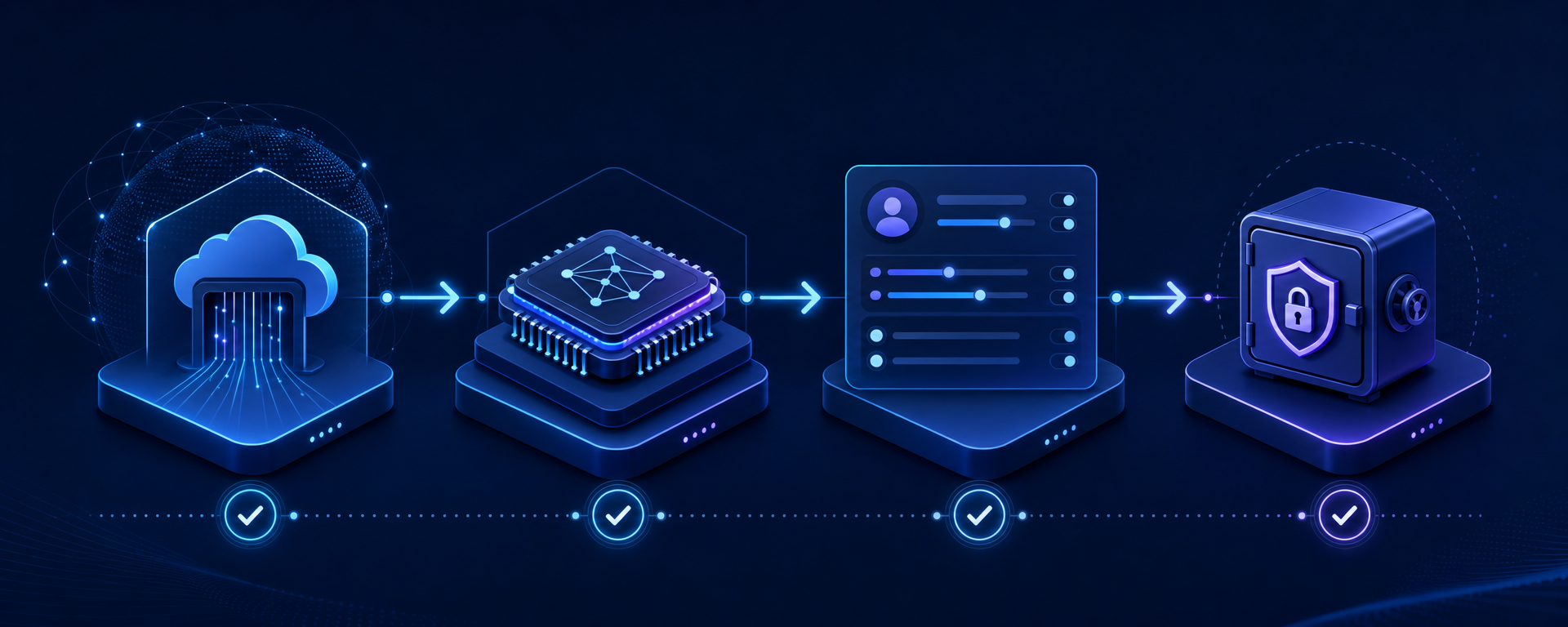
Three levels that should not be mixed
Connecting a model in Sapphire I.C.D.S. consists of three separate records. Provider describes the external service: its stable key, base URL, installed adapter, and access secret. Model stores the model identifier for this provider and its technical limits. Profile sets the already working behavior: system instruction, context budget, response volume, and additional parameters. This separation allows using one model in several modes without duplicating the API key or overriding the actual model limitations with settings of a separate task.
Configuration is performed in the administrative section AI Settings. Access to it must be granted via Helix. Before starting, obtain the current values for base URL, model ID, and limits of the selected model from the provider, and ensure that the corresponding adapter is already installed in the Sapphire server stack. The string in the form does not install the library by itself.
Step 1. Provider creation
Open the providers section and create a new record. The field Vendor key must contain a short, stable machine identifier, for example acme_ai. Use lowercase Latin letters, digits, and underscores. Do not include the domain, tariff, region, or model version here: the key links settings and must survive normal product changes.
Display name is intended for operators and can be human-readable. In Base URL indicate the documented base HTTPS address of the provider's API, without the specific model path or a token in the query string. Do not copy the URL from the browser console and do not append an arbitrary trailing route to it. If the vendor offers different compatible APIs, use the variant for which the adapter is installed.
Vendor key must match the variant of the installed provider that detects the platform's native loader. The field Provider library in the current runtime is a compatible fallback metadata and usually does not determine an adapter with a non-empty vendor key. This is not a file path or a mechanism for installing a new library. If the required provider variant is not installed, pass the task to the deployment administrator.
In Secret name usually leave the accepted secret name for this adapter, and in Secret value enter the issued API key. The secret should not be placed in the name, URL, description, screenshot, ticket, or JSON profile. After saving, the interface only shows the fact that a secret exists, not its original value. When editing, leave the value field empty if the key does not need changing; a new non-empty value means secret rotation. The practical order is: first create the provider disabled, save the secret, check other fields, and only then enable the record.
Step 2. Model registration
Go to the models section and select the newly created provider. Model key must exactly match the identifier accepted by the API, including hyphens, dots, and version suffix. This is not an arbitrary alias. There is a separate field for a convenient name: Display name.
Then transfer the three limits from the official model card. Maximum context — the full context window limit. Maximum input — the maximum allowable input. Maximum output — the limit of the generated response. All values are set as positive integers in tokens. Input and output separately cannot exceed the full context. Do not substitute a promotional context value if the selected API or tariff allows for less.
Tokenizer variant determines the method of token estimation. Specify the exact supported variant if known. If only conservative estimation is available for a new family, use the agreed name of such a variant, not a random model name. Field is mandatory: an incorrect tokenizer leads not to cosmetic inaccuracy, but to incorrect calculation of compaction moment and allowable request size.
Safe order of inclusion
- Create the provider with the correct HTTPS URL and installed adapter.
- Save the secret and ensure that the presence indicator is displayed in the list.
- Create the model with an exact model key and confirmed limits.
- Create a separate profile for this model; without a profile, the working policy is not defined.
- First enable the model and provider for limited testing, then assign the default profile.
For testing, open a new AI session, explicitly select the created profile, and execute a short query without tools, such as asking to return one line of text. A new session excludes the influence of the old profile selection and accumulated history. After the basic response, check the streaming mode and only then scenarios with tools. Tool availability is managed by the catalog and group rights, not by the provider or model record.
Typical errors
- Authorization error: check for the existence of the secret, its expiration date, and assignment to the required project; then rotate only when necessary.
- Model not found: compare the model key character by character with the API documentation and ensure that the model is allowed for the account.
- Invalid route: check the base URL, selected adapter, and the absence of the model path in the base address.
- Limit saving failure: all three values must be positive, and input and output must not exceed context.
- Model does not appear in operation: the provider, model, and profile must be enabled; the profile must reference the same pair and be available to the current user.
Do not change the secret, URL, model key, and limits simultaneously on an active profile. Make changes one by one and record the verification result. For changing a model generation, it is safer to register a new model and a new profile, test them separately, and then switch the default profile. This leaves a clear path for rollback without replacing the meaning of existing records.
Acceptance and support
After a successful minimal query, record the vendor key, model key, profile assignment, source of limits, and date of verification in the working documentation. Do not record the secret itself. Separately check the behavior when the provider is temporarily disabled: the user should receive a clear error, not infinite waiting. If the service has multiple regions or tariff routes, document them as conscious configurations, and do not change the base URL during diagnostics.
Periodically review limits according to the supplier's current documentation. Changing the commercial name of the model does not always mean a new API identifier, and a new identifier does not guarantee the previous tokenizer variant. Any such change goes through the same cycle: separate record, profile, test session, response check, and only then user switching.